CGMs
In the Connect IQ settings, pick your source under Device, then fill in Email/Username/URL and Password/Secret. Those two fields mean something different for each source, as described below.
When the source has them, the apps show:
- the current glucose
- a trend arrow
- a graph of recent readings, for as many hours as you set under Max. Hours the Graph shows (1 to 12)
Currently supported are Libre 2/2+/3/3+, Dexcom through Dexcom Share, Sibionics via a dedicated follower account, Medtrum via a follower account, Twiist, Medtronic via CareLink, xDrip on an Android phone / Juggluco, and Nightscout.
NOT supported are:
- Dexcom Stelo
- InPen
Libre 2/2+/3/3+ via LibreLinkUp
The apps use LibreLinkUp (not to confuse with LibreView or the Libre 2/3 apps) to access your data — think of them as another follower. Please install that app from Abbott on your phone and configure it. There are separate device entries for LibreLinkUp, LibreLinkUp (Russia) and LibreLinkUp (China). Use the one that matches your account.
 The LibreLinkUp app has this red icon. Please make sure that you can see your readings in LibreLinkUp before you configure the CGM Connect apps. This video (in English) shows you how to set up LibreLinkUp so that it can also be used with the CGM Connect apps.
Note
LibreLinkUp has stricter password requirements than your Libre(View) account. So having the same password for both accounts often does not work. Please keep that in mind!
Note
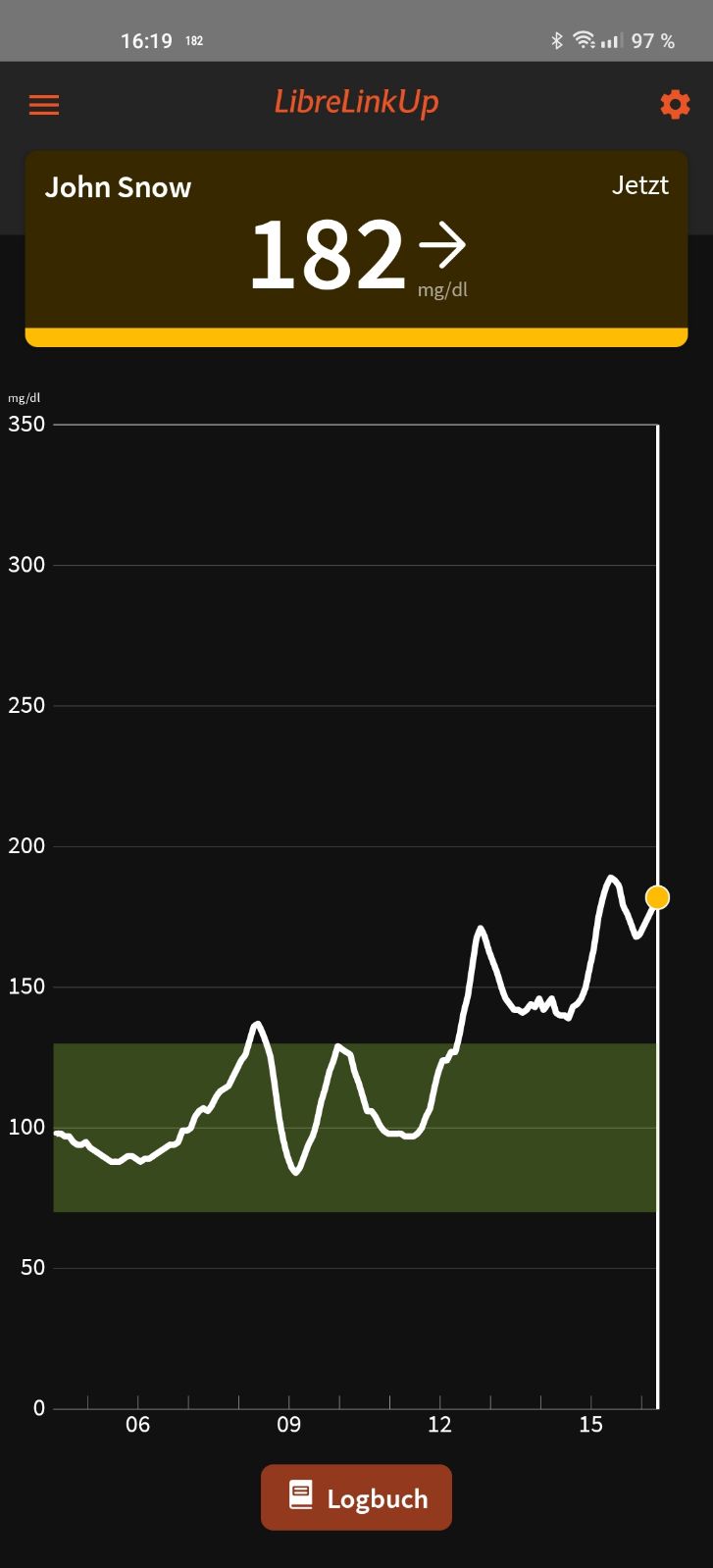 When opening the LibreLinkUp app, you should be able to see your current reading properly synced and a graph.
Sign in with the LibreLinkUp email and password. If you follow more than one person, put that person's first name (as it appears in LibreLinkUp) or the sensor serial number into First name as it appears in LibreLinkUp when the watch asks for it.
You get the current glucose, the trend arrow, the graph, and the remaining sensor time.
Dexcom via Dexcom Share
You need to have at least one follower in Dexcom Share. Please verify that it is working for the follower. The CGM Connect app expects your (the sharer's - the sensor-owners) credentials. It should be the same username and password that you are using to sign into your Dexcom account.
If your username happens to be a phone number (+1234567890) and login fails, try to replace "+" with "%2B" (%2B1234567890). I've been told that it helped users to log in.
You get the current glucose, the trend arrow and the graph.
xDrip+ on Android Phone/Juggluco
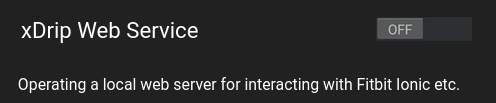
In xDrip+ you need to enable (see docs):
→ Hamburger Menu → Settings → Inter-app settings → xDrip Web Service and set it to "ON"
In Juggluco you need to enable:
→ Settings → Webserver → Active CHECK
Select xDrip/Juggluco/AAPS on phone as the device. The 14-day and 15-day entries read the phone the same way. You need a dummy user and a dummy password. This can be anything. It won't be used, but Connect IQ settings are static, so it is not possible to demand settings for one device but not the other.
The watch reads the glucose from the phone. You get the current glucose, the trend arrow and the graph. No account on the CGM Connect service is involved.
Sibionics via a dedicated follower account
Select Sibionics Follower (non-CN). This is the European Sibionics follower service. Sign in with the email and password of a follower account, and follow at least one person with it. If that list is empty, the watch says FD follow someone!.
Note
Use a dedicated follower account. Sibionics accounts can only ever be logged in at one app or device at a time, so the account you type in here will be logged out everywhere else.
The readings used here are a glucose value and a time. There is no trend arrow for Sibionics. The graph is filled from that glucose history.
Medtrum via a follower account
Select Medtrum Follower. Sign in with the email and password of your Medtrum EasyView follower account (the Follow app). The service logs in as a follower.
You already have to follow exactly one person in that app:
- nobody yet: the watch says
you don't follow yet - more than one person: the watch says
not yet implemented
On the first successful login the service finds the EasyView region (Europe, France, Russia, China or the US) and the watch remembers it. You do not pick a region yourself.
You get the current glucose, the trend arrow and the graph. The arrow comes from Medtrum's live glucose rate (rising or falling quickly, rising or falling, or flat).
Twiist
Select Twiist. Sign in with the email and password of your Twiist follower account, the same ones you use for the myTwiist follower portal.
The account has to follow exactly one person. If it follows nobody, or more than one person, the watch says you're not following.
You get the current glucose, the trend arrow and the graph. The arrow is shown when Twiist sends one: rising quickly, rising, flat, falling, or falling quickly.
Medtronic via CareLink
Unfortunately the setup for that device is elaborate but following this easy 7-step process, you can do it! Regardless which of my apps you want to use, you always need to set it up first using the CGM Connect Widget.
Befor starting, make sure that you have the following:
- a dedicated Medtronic Carelink-account that is following you/the person you want to follow - any other app will be logged out when my app logs into the account
- Username (email) and password for that account
- Garmin Connect installed on your phone and paired with your Garmin device (Garmin Golf for the Approach-series)
- Garmin ConnectIQ installed and paired with your Garmin device
Note
you need to connect using the CGM Connect Widget first! The other apps will only work if you have enrolled using the CGM Connect Widget as it is the only app that can use the official way to sign in.
- Install the CGM Connect Widget on your Garmin device using the Garmin ConnectIQ-app
- Configure the CGM Connect Widget using Garmin ConnectIQ app
- select "Medtronic CareLink" as CGM device
- enter the email of your Carelink-account as Email/Username/URL
- enter the password of your Carelink-account as Password/Secret
- select the unit (mg/dl is the default) that you are using
- save the settings
- sync your device with the Garmin ConnectIQ-app AND the Garmin Connect-app
- Acknowledge that a new app has been installed on your Garmin device and open the CGM Connect Widget
- The widget will recognize, that this is the inital setup and prompt you to look at your phone for a Minimed login-page. The message should be CareLink login: check phone
- On the phone the login-page should be open - if not, open Garmin Connect (not Garmin ConnectIQ) and check if that loads the page
- log into your Carelink account using this page
- the widget will recognize a successful pairing and from now on show your readings
When using the CGM Connect Datafield or the CGM Connect Watchface, you need to set up first using the CGM Connect Widget.
In the Datafield and in the Watchface you only need to configure the CGM device, username, password and unit. No loggin into Minimed-account is needed. Same goes for additional Garmin-devices and Widget-installs.
The login expires if it isn't used for 7 days. In that case, you need to connect again using the Widget.
Additional Notes
- CareLink country is the country of the CareLink account, two letters, for example
DEorUS. If you leave it empty, the service guesses from the phone's location. A wrong guess showsCareLink country needed (e.g. DE). - If the account follows more than one person, put that person's first name into First name as it appears in CareLink. One person needs nothing there. Several people and no name shows
please add name to follow. Nobody followed showsfollow a patient in CareLink Connect. wrong password for CareLinkmeans the password in the settings is not the one from enrollment. Correct the setting. This does not open the login page.
Nightscout
The username is
https://{your-nightscout-domain}/
the password has to be your {your-secret-token} or your API secret. The app tries to access
https://{your-nightscout-domain}/api/v1/entries/sgv.json?token={your-secret-token}
You can try that in your browser. It should get you a list of your readings.
You get the current glucose, the trend arrow when Nightscout sends a direction, and the graph.